Set Up Feedback Guru with Direct Integration
Sign up at app.feedback.guru, choose a plan, then add your BCC address to shipping or service emails and configure your review URLs.
The Direct integration is for businesses that are not on Shopify, or that prefer not to use the Shopify app. You sign up at Feedback Guru, subscribe, then add a unique BCC email address to your shipping or service confirmation emails. When you BCC us, we send a review request to that customer. No code required, just BCC.
Direct works with any platform that supports BCC on outbound email. We’ve confirmed it works with WooCommerce and Adobe Commerce (Magento 2); others that allow a BCC or additional-recipient field on transactional emails may work too.
Part 1: Sign up and subscribe
Step 1: Sign up for an account
- Go to app.feedback.guru/accounts/signup/.
- Enter your email address, password, and team name (your business or site name).
- Complete the captcha and click Sign Up.
Step 2: Confirm your email
Check the inbox for the email you used to sign up. Click the confirmation link to verify your address. You must confirm before you can subscribe.
Step 3: Choose a service plan
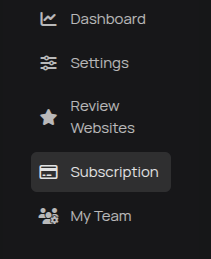
In the Feedback Guru dashboard, click Subscription in the left sidebar to open the plan selection page. Click Subscribe on the plan that fits your volume, then enter your billing details and complete checkout. Billing is through Feedback Guru (Stripe). For current prices and request limits, see the Pricing section on our homepage.
Part 2: BCC + review URLs
Get your BCC address
- In the left sidebar, click Settings.
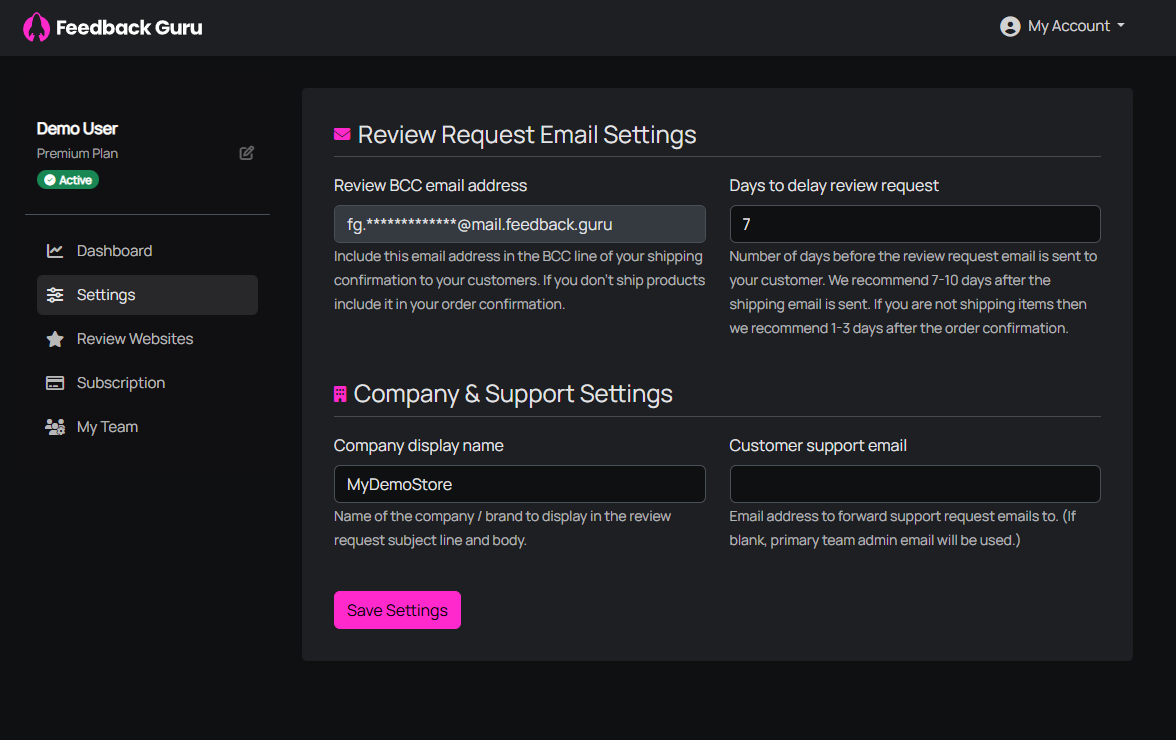
- In Review Request Email Settings, find Review BCC email address. Copy that address.
Add this address to the BCC field of the emails you send when an order ships or a service is completed. The on-screen text explains: include it in your shipping confirmation, or in your order confirmation if you don’t ship products. Keep the address private; it’s tied to your account.
Add the BCC address to your emails
In the system that sends your shipping or order confirmation emails, find where to set the BCC (blind carbon copy) for that message. Paste your Feedback Guru BCC address there and save. Every time that email is sent, we receive a BCC’d copy and send a review request to the customer on that email. We don’t need access to your store or email system beyond that.
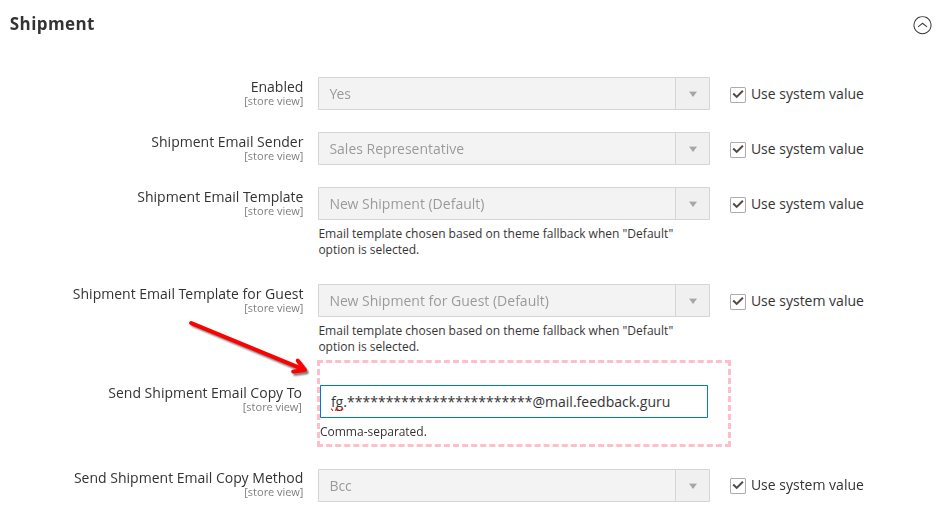
Example: Adobe Commerce (Magento 2) - Go to Stores → Configuration → Sales → Sales Emails → Shipment. In Send Shipment Email Copy To, enter your Feedback Guru BCC address. Set Send Shipment Email Copy Method to Bcc. Save the configuration.
For WooCommerce and other platforms, the BCC option is in a different place (e.g. under email or notification settings). Refer to your platform’s or app’s documentation to find where to add a BCC recipient for shipment or order confirmation emails.
Add your review URLs and traffic split
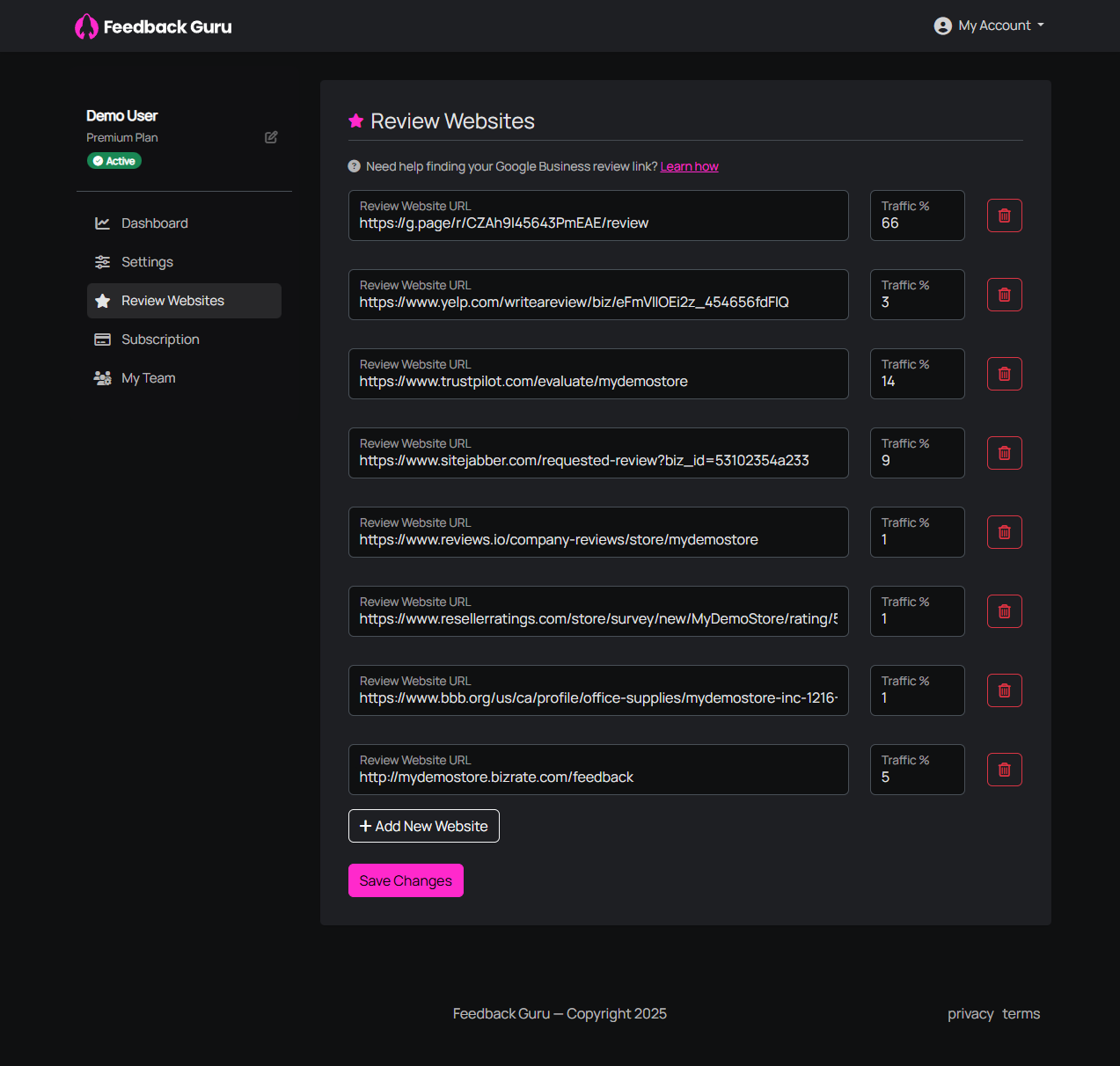
Review Websites are the URLs where customers can leave a review (e.g. your Google Business Profile, Yelp page, Trustpilot, Sitejabber). Feedback Guru sends each customer to one of these links based on the Traffic % you set for each. The page is the same whether you use Shopify or Direct; only how customers enter the system differs (BCC’d emails here vs. Shopify orders there).
Add and edit review URLs
- In the left sidebar, click Review Websites.
- For each platform you want to use, enter the Review Website URL (the full link where customers can leave a review) and the Traffic % (the share of review requests that should go to that platform). Percentages should add up to 100%.
- Click + Add New Website to add another row.
- When you’re done, click Save Changes.
You can remove a site using the trash icon on that row. Need help finding a link? Use the Learn how link on the Review Websites page for Google, or see our guides: Find your Google Business review link and Add third-party review websites.
How the percentage split works
When a customer clicks through from their review request email, Feedback Guru sends them to one of your configured URLs according to your Traffic % settings. Over time, about 66% of clicks go to the platform set to 66%, and so on. That lets you grow reviews on multiple platforms at once.
Optional: Settings
Under Settings you can also set:
- Days to delay review request - We recommend 7-10 days after the shipping email (or 1-3 days after order confirmation if you don’t ship).
- Company display name - Shown in the review request subject and body.
- Customer support email - Where to forward support requests (if blank, the primary team admin email is used).
Click Save Settings after any changes.
You’re done
Once BCC is on your shipment or completion emails and your Review Websites are set, Feedback Guru will detect each BCC’d email, send that customer a review request, and route their click to one of your review URLs according to your Traffic %. No code or theme changes required.
For help finding review links, see our guides: Find your Google Business review link and Add third-party review websites.