Add Third-Party Review Websites to Your Request Emails
Add Yelp, Trustpilot, Sitejabber, or any review site URL to Feedback Guru and control how much traffic each site gets.
You can add any review site that gives you a direct URL where customers can leave a review. Feedback Guru will include those links in your request emails and split traffic according to the percentages you set.
This guide covers adding and managing review websites in Feedback Guru (same for Shopify and Direct setups).
1. Open Review Websites
- Log in at app.feedback.guru.
- In the left sidebar, click Review Websites.
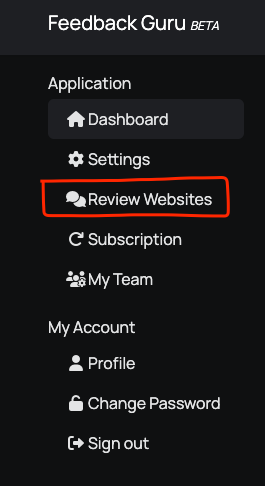
2. Add a review site URL
On the Review Websites page:
- Paste the full URL where customers can leave a review into a Review Website URL field.
- Set the Percentage of Traffic you want to send to that site (e.g. 40%). All site percentages should add up to 100%.
- Click Save Changes.

Feedback Guru will start sending that share of customers to this site when they click through from the request email.
3. Add more sites (optional)
To send customers to more than one review site:
- Click + Add New Website.
- Enter the next review URL and its traffic percentage.
- Adjust existing percentages so the total is still 100%.
- Click Save Changes.

You can add as many sites as you like, as long as each has a direct “leave a review” URL.
4. Set your traffic split
Use Percentage of Traffic to control where reviews go:
- Give a higher percentage to the sites that matter most (e.g. Google, your main industry site).
- For smaller or niche sites, 5-10% is often enough.
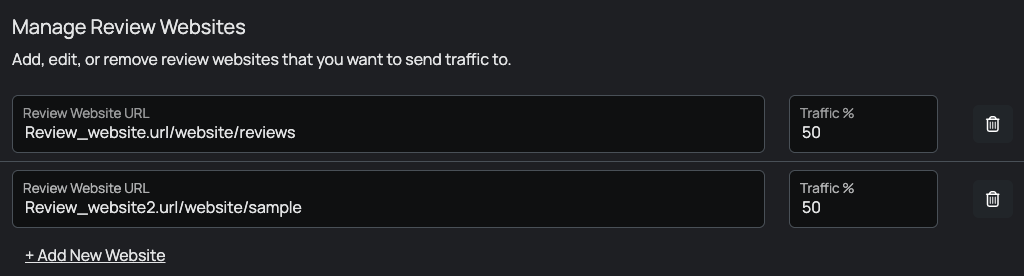
You can change percentages anytime; just update the numbers and click Save Changes.
Next steps
Need the direct review URL for a specific platform? See Find your Google Business review link for Google; for others, use the “get review link” or “share” option on that platform’s dashboard.