Find Your Google Business Review Link and Add It to Feedback Guru
Get your unique Google review URL from Google Business Profile and add it to Review Websites so Feedback Guru can send customers there.
Google reviews are one of the top places customers look before buying. Adding your Google review link to Feedback Guru lets you send a share of your review requests straight to your Google Business Profile, no hunting for the link each time.
This guide walks you through getting that link and adding it to your Review Websites (same steps whether you use Shopify or Direct).
1. Open Google Business Profile
- Go to business.google.com.
- Log in with the Google account that owns your business listing.
If you don’t have a profile yet, create one. It’s free, puts you on Google Search and Maps, and unlocks customer reviews.
2. Open “See your profile”
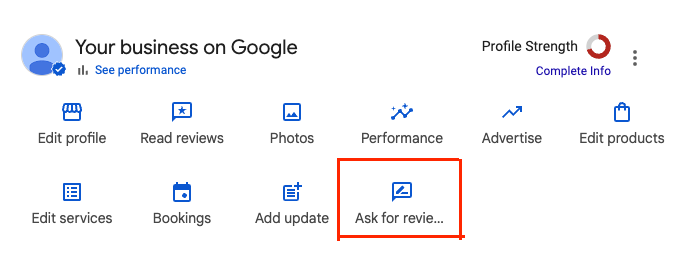
Next to your store or business info, click See your profile. You’ll land on the public Google page for your business, with options to edit your profile and a button to Ask for Reviews.

3. Click “Ask for Reviews”
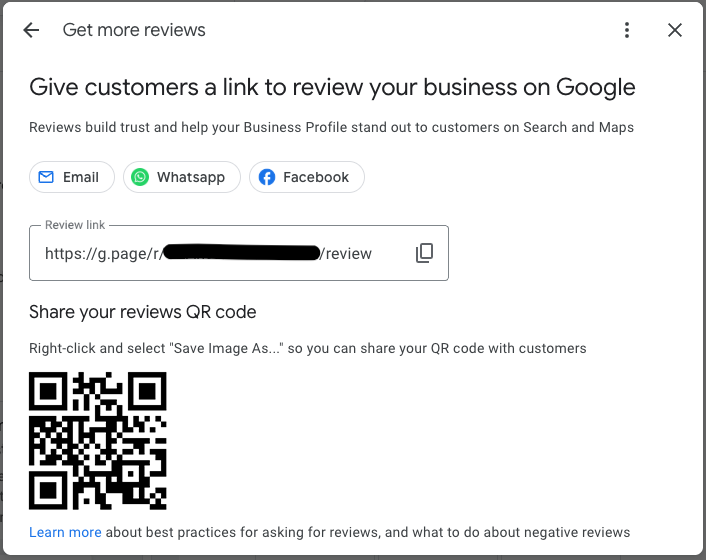
Click Ask for Reviews. Google shows a window with your unique review link. You may also see share options (e.g. Facebook, WhatsApp, Email); use the link itself.
4. Copy the link
Click Copy Link. That URL goes straight to the star-rating box for your business.
5. Add the link in Feedback Guru
- In the Feedback Guru admin, click Review Websites in the left sidebar.
- Paste your Google link into a Review Website URL field.
- Set the Traffic % you want to send to Google (e.g. 60%). Percentages across all sites should total 100%.
- Click Save Changes.
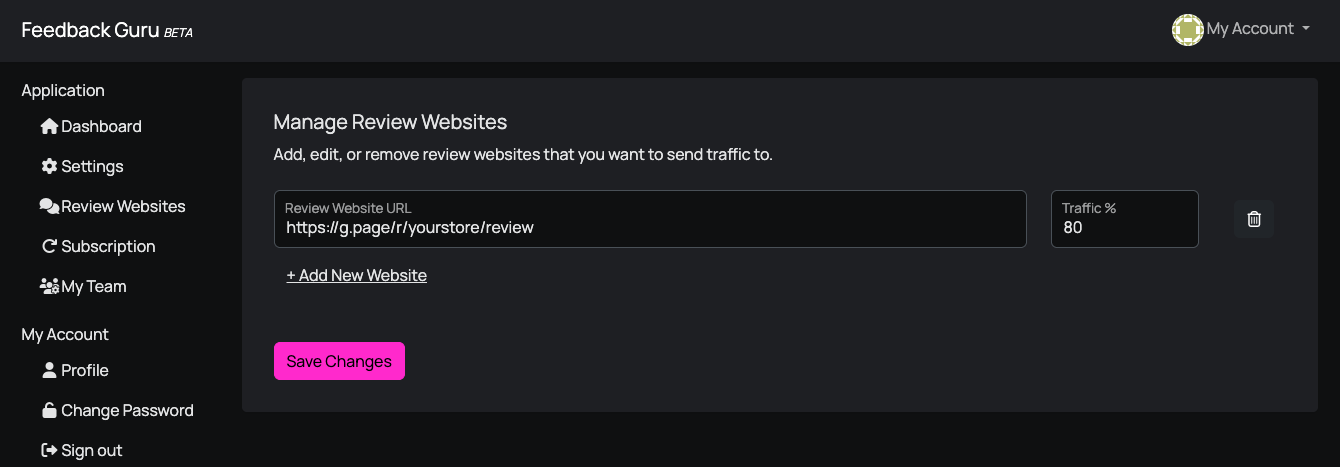
Feedback Guru will now send that share of customers to your Google review page when they click through from the review request email.
Next steps
To add more platforms (Yelp, Trustpilot, Sitejabber, etc.), see Add third-party review websites.